
In this tutorial, you’ll create a temperature converter application using C# and Windows Forms on Visual Studio.
Windows Forms is a graphical framework used to create desktop applications that run on Windows. Since Visual Studio features a visual designer for it, it is possible to create a GUI for your application very easily using Forms.
What you will learn:
After following this tutorial, you will be able to:
- Build a basic Graphical User Interface (GUI) on Visual Studio.
- Code a program to perform conversions between different units.
- Understand how a program processes inputs through a GUI and how to display an output result to a user.
Create a new project
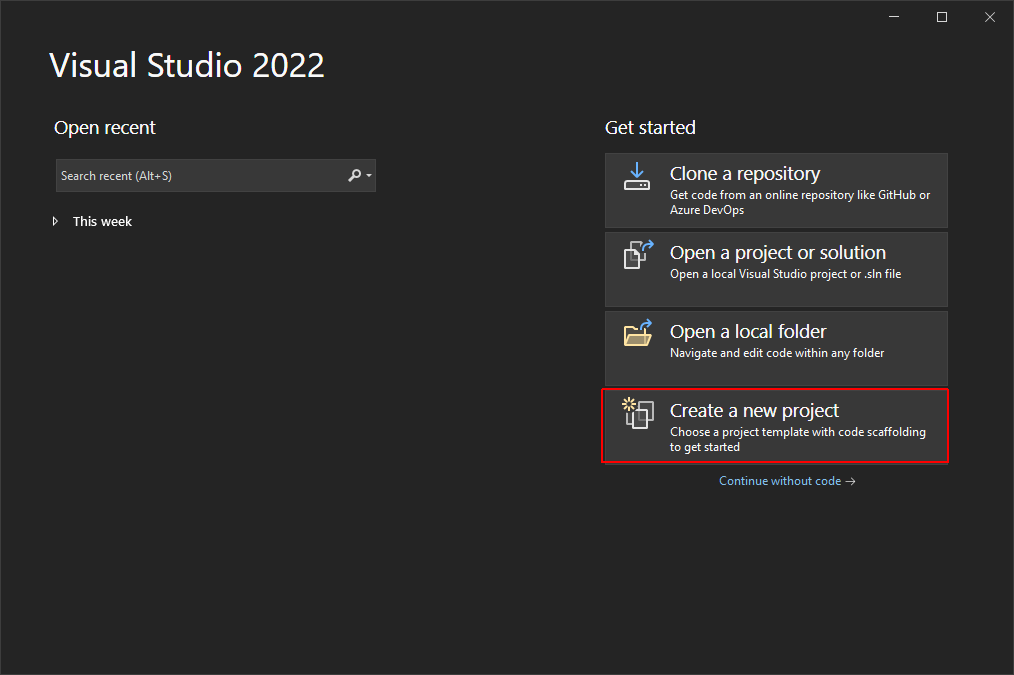
To start a new project, open Visual Studio 2022, and click on Create a New Project to continue.
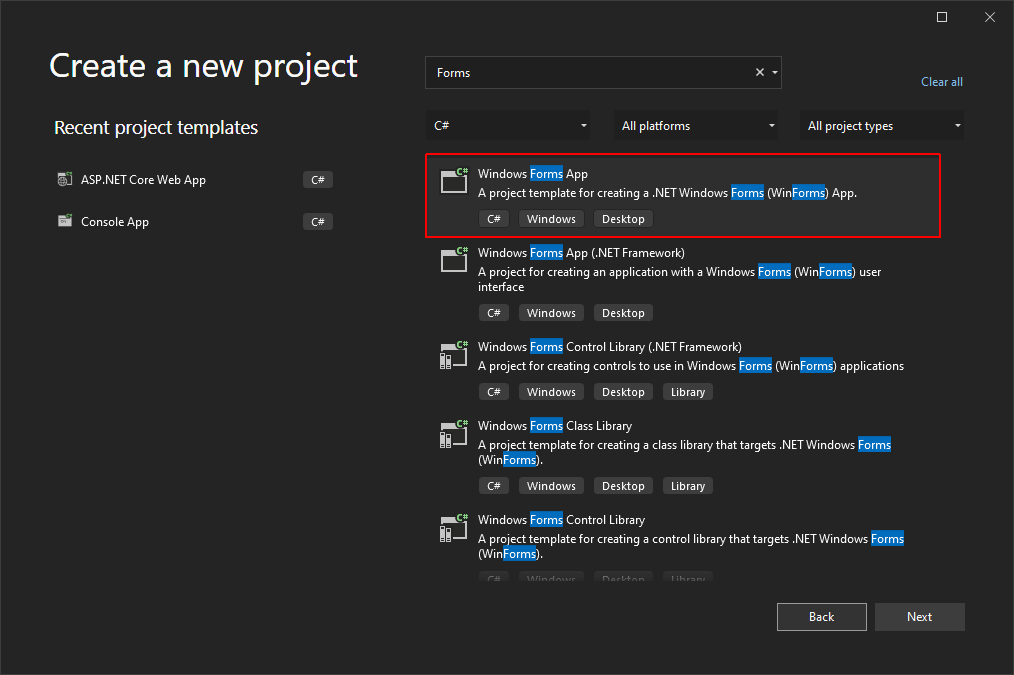
On the next window, select Windows Forms App to create a new project that already includes the necessary structure to create a Windows Forms project. Then, click Next.
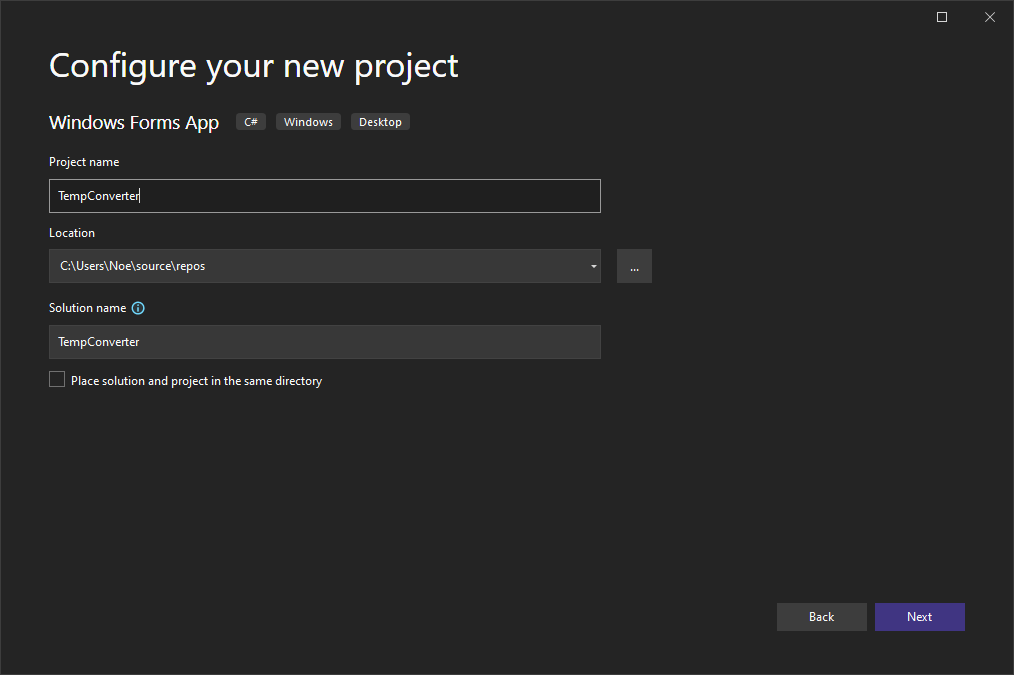
Configure your new project by naming it, and press Next.
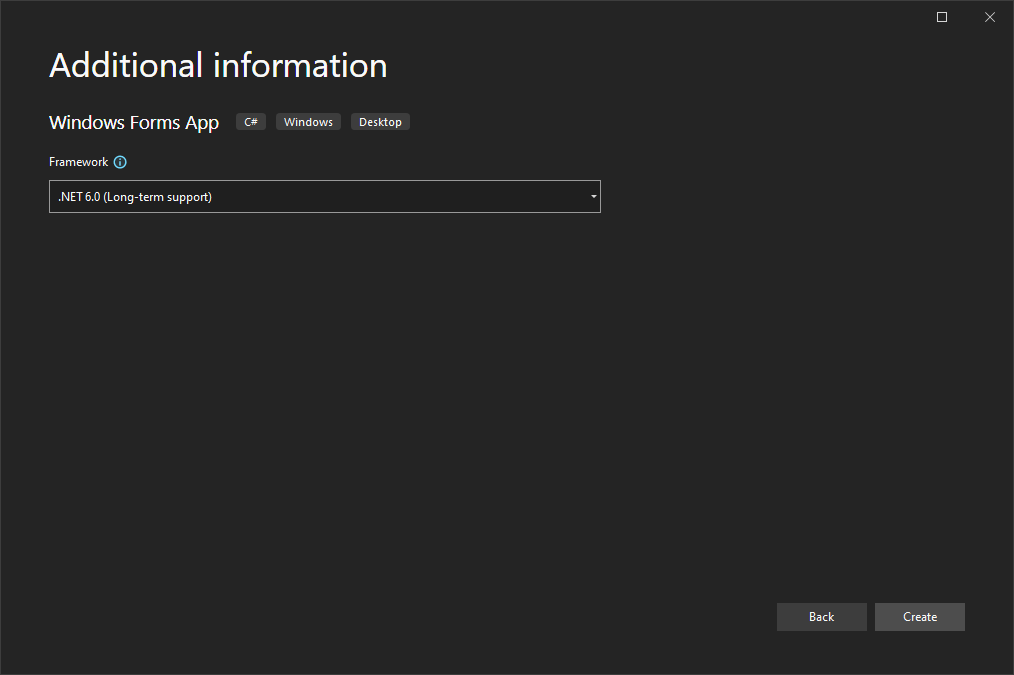
Finally, click on Create to create the project.
Design the GUI
Event-driven programming is a programming paradigm where the flow of the program is determined by events. These events can be generated when the user interacts with the program by clicking on a button, writing on a textbox, checking a box, among others. After the event is generated, the program can respond by performing a certain action.
The elements used to interact with the program are called controls, and Visual Studio provides you with multiple controls that you can add to your program with a drag-and-drop editor.
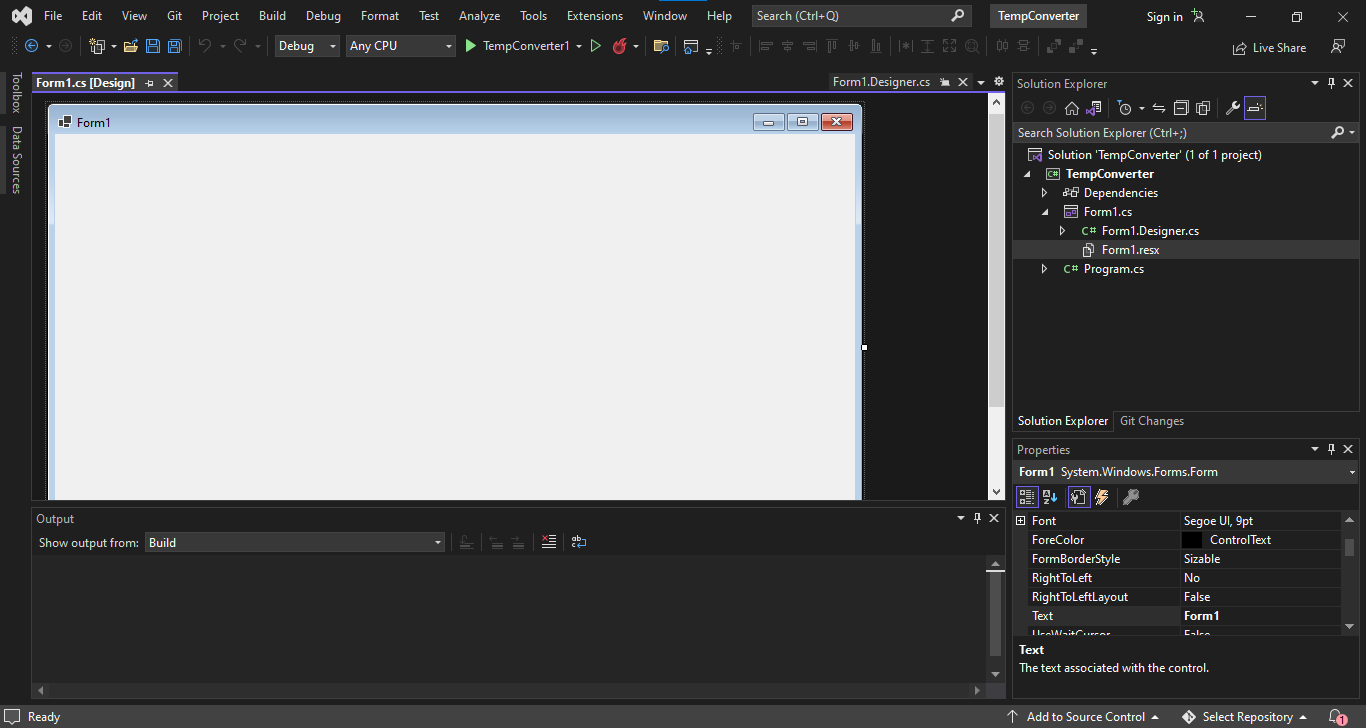
After you’ve created the project, Visual Studio will show you an empty window, representing the GUI of your program.
On the right side of the screen, you can see the Solution Explorer, where you can manage and open the different files that are part of this project. Under that panel, you’ll find the Properties panel, where you can change the properties of whatever element is currently selected on the Forms designer.
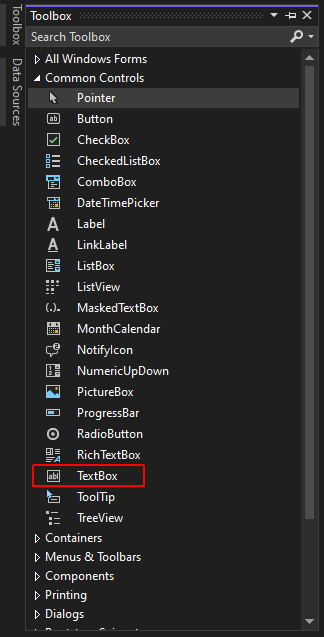
On the left sidebar, you can find a Toolbox to start adding elements to your form. Clicking on it will open a list with all the controls that you can add to your GUI. Click on Common Controls to display some of the most used elements when building Windows Forms.

Drag the Textbox controller from the Toolbox and drop it on the empty window in the designer.
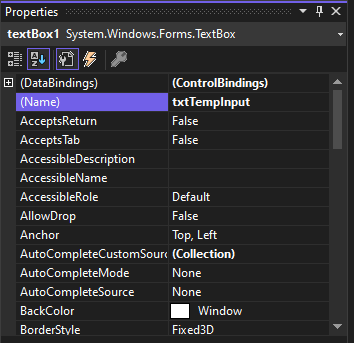
Then, change its name on the Properties panel to txtTempInput.
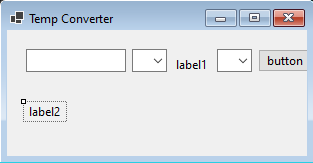
Resize the window, and add the following controllers with their corresponding names:
Combobox -> cmbInputUnit
Combobox -> cmbOutputUnit
Label -> label1
Button -> btnConvert
Label -> lblResult
Click on the Button, and on the Properties panel find the Text field, and change it to Convert.
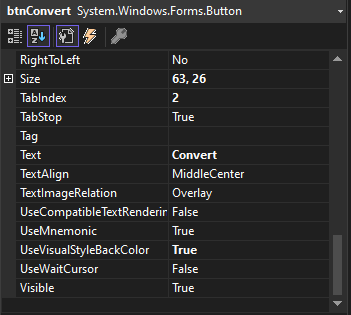
Use the Properties panel to change the text of label1 to To as well as the title of the window to Temp converter, and lblResult to 0.
Finally, change the size of the font used on lblResult to 24 on the Properties panel.
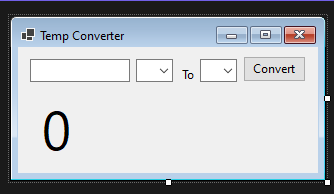
Your Form now should look similar to this:
Code the conversion methods
Now you need to write the actual code that will perform the conversion between units. For this project, we will use the following formulas:
Fahrenheit to Celsius:
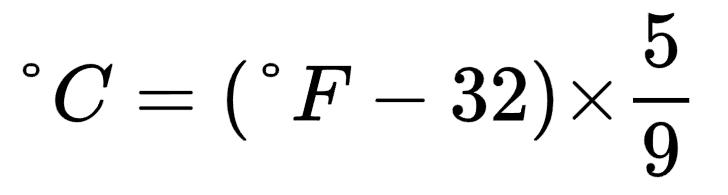
°C = (°F – 32) * 5/9
Celsius to Fahrenheit:
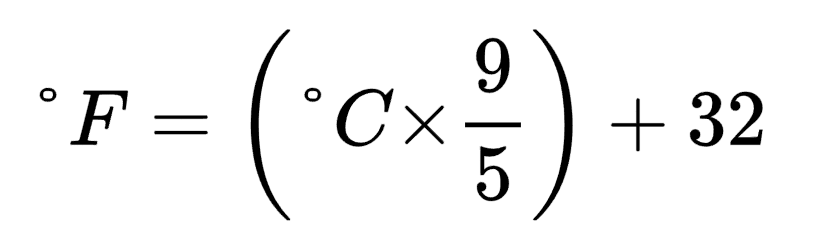
°F = (°C * 9/5) + 32
Celsius to Kelvin:

K = °C + 273.15
Click on Project>Add Class and name this new class Convert.cs.
There, add the following method:
class Converter
    {
        public static double F_to_C(double F)
        {
            return (F - 32) * 5 / 9;
        }
    }
In the previous code:
- The method is
publicso that it can be accesed by other classes in the same namespace. F_to_C()is alsostaticsince it doesn’t change any instance values within the class.F_to_C()receives a parameterdouble F, which is the temperature to convert in F°, and returns the converted value as adouble, since it’s common for temperature values to include decimal numbers.
The rest of the conversion methods are very similar to this one:
class Converter
    {
        public static double F_to_C(double F)
        {
            return (F - 32) * 5 / 9;
        }

        public static double C_to_F(double C)
        {
            return (C * 9 / 5) + 32;
        }

        public static double C_to_K(double C)
        {
            return C + 273.15;
        }

        public static double K_to_C(double K)
        {
            return K - 273.15;
        }

        public static double K_to_F(double K)
        {
            var celsius = K_to_C(K);
            var fahrenheit = C_to_F(celsius);
            return fahrenheit;
        }

        public static double F_to_K(double F)
        {
            var celsius = F_to_C(F);
            var kelvin = C_to_K(celsius);
            return kelvin;
        }
    }
As you can see, these methods are very straightforward, only taking an input value and returning the result of the formula. Except for the last two, K_to_F() and F_to_K(), which call some of the previously defined methods to perform the conversion.
Process the user inputs and show the result
You have designed the User Interface of your program, and you have added the underlying functions that will process the data. Now it is time to connect those two parts of the program.
Open the designer and double click on an empty part of your form. This will generate an empty event handler like the following:
private void Form1_Load(object sender, EventArgs e)
        {

        }
An event handler is a method used to monitor and process events. In this case, Form1_Load() will execute the code between the brackets when the form is first loaded.
First of all, we are going to add the temperature units to the Combobox to let the user select them:
private void Form1_Load(object sender, EventArgs e)
        {
            String[] units = { "°F", "°C", "K" };
            foreach (var unit in units)
            {
                cmbInputUnit.Items.Add(unit);
                cmbOutputUnit.Items.Add(unit);
            }

            cmbInputUnit.Text = units[0];
            cmbOutputUnit.Text = units[1];
        }
In this code we:
- Declare an array of strings
units, containing the three temperature units that the program can convert. - Use a
foreachloop to add each unit tocmbInputUnitandcmbOutputUnit. By using a loop we can avoid repetitive code. - Set the initial value of
cmbInputUnitto°FandcmbOutputUnitto°C.
Now you only have to define the behavior of the Convert button. Go to the designer and double click on btnConvert to create an event handler for this control.
private void btnConvert_Click(object sender, EventArgs e)
        {

        }
btnConvert_Click() will run immediately after the user clicks on btnConvert. In this method, we are going to read the number from txtTempInput, and perform the conversion based on cmbInputUnit and cmbOutputUnit. Finally, the resulting value will be shown on lblResult.
private void button1_Click(object sender, EventArgs e)
        {
            double value = Convert.ToDouble(txtTempInput.Text);
            double result = 0;
            string unit1 = cmbInputUnit.Text;
            string unit2 = cmbOutputUnit.Text;

            if (unit1 == unit2)
            {
                result = value;
            }
            else if (unit1 == "°F")
            {
                if (unit2 == "°C")
                {
                    result = Converter.F_to_C(value);
                }
                else if (unit2 == "K")
                {
                    result = Converter.F_to_K(value);
                }
            }
            else if (unit1 == "°C")
            {
                if (unit2 == "°F")
                {
                    result = Converter.C_to_F(value);
                }
                else if (unit2 == "K")
                {
                    result = Converter.C_to_K(value);
                }
            }
            else if (unit1 == "K")
            {
                if (unit2 == "°F")
                {
                    result = Converter.K_to_F(value);
                }
                else if (unit2 == "°C")
                {
                    result = Converter.K_to_C(value);
                }
            }

            result = Math.Round(result, 2);
            lblResult.Text = $"{result}{unit2}";
        }
In the previous code, we:
- Convert the value from
txtTempInputfromstringtodouble, and store it invalue. - Define
resultas adoubleto store the result of the conversion. - Store the value from
cmbInputUnitandcmbInputUnitinunit1andunit2, respectively. This will let us know what units we are converting, for example, °F to °C. - Declare that if
unit1is the same asunit2, the result is equal to the initial value entered by the user. In other words, no conversion is performed. Putting this at the top of theif-elsestatements helps us avoid unnecesary comparisons when no conversion is needed. - Otherwise, we declare a series of
if-elsestatements to catch every combination of°F,°C, andK, calling the respective methods that are defined inConverter.cs.
For example, the firstelse ifstatement can be read as "If the first temperature unit is Fahrenheit, and the second one is Celsius, convert the value from Fahrenheit to Celsius. Otherwise, convert to Kelvin." - After the temperature value has been converted, call
Math.Round()to round the resulting value down to 2 digits after the period. - Change the text value of
lblResultto displayresultfollowed by the output unit.
Now you can proceed to test the program. If everything went well, you will see something like this:

Conclusion
Coding a unit conversion program is a good exercise to advance your skills as a beginner in any language. Since it is not an excessively complex program, it allows you to focus on the structure of the language while building something that can be useful.
While this is still a very simple program, there are many ways you could expand on it if you want to expand your knowledge on the development of desktop applications for Windows. For example:
- How would you avoid unexpected values from breaking the program? For example, if a user tries to convert
Q °FtoK - How could you prevent the user from entering unexpected values at all?
- The same problem is present on the Comboboxes. The user can still write any value instead of the predefined units. How can you force the user to select one of the predefined values?
Another similar project that you could work on could be a currency converter, with the added complexity of keeping the program values updated by pulling the current values from the internet.
At the end of the day, the only way to keep improving your skills is coding and challenging your knowledge.